
In case of a new request for quotation the supplier navigates from the overview to the RFQ directly.
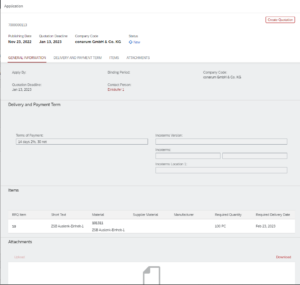
RFQ detail page
In the RFQ detail page the supplier can check the RFQ and can create a quote by clicking on the button Create Quotation.
Quote detail page
When the supplier clicked on the button Create Quotation the quote detail app is started.
In the quote detail page you can enter the following data:
– Incoterms
– Supplier material
– Quotation quantity
– Price and Price Unit
– Delivery Date
– Additional attachments
When the supplier entered the necessary data, he can save a draft and he can go on later or he can submit the quote.
When the supplier has submitted the quoted, he cannot change it anymore. The submitted quote is transferred to the supplier’s SAP ERP system.